Data Import
Import your transaction history from other apps or bank exports. This is perfect for migrating from another service or adding historical data.
Prefer a video walkthrough? Watch our step-by-step import tutorial.
Currently, FinWise supports importing transactions via CSV files. More import options coming soon.
Preparing Your CSV File
Your CSV file should include columns for:
• Date (required)
• Amount (required)
• Description (required)
• Account Name (required if importing to multiple accounts)
• Category (optional)
• Tags (optional)
Most bank exports and financial apps provide CSV files in a compatible format.
Starting the Import
Go to the Transactions page and click "Import Transactions" in the top right. Select your CSV file and click Continue.
FinWise will show you a preview of your data and ask whether you're importing to a single account or multiple accounts.
Mapping Columns
FinWise will automatically detect common column formats, but you can adjust the mapping by clicking on each column header.
Map your CSV columns to FinWise fields: Date, Amount, Description, Account, Category, and Tags.

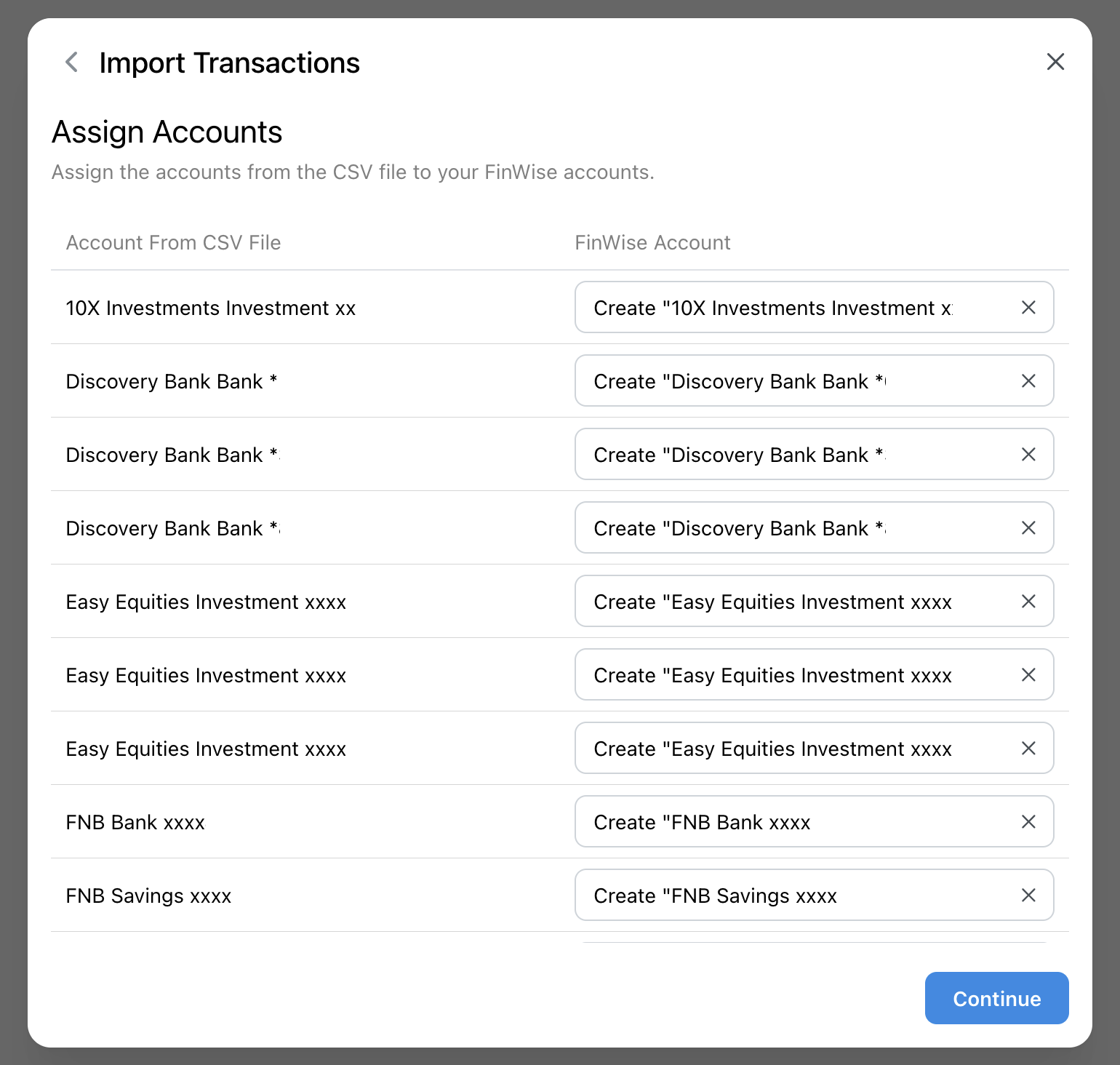
Matching Accounts
If your CSV contains transactions from multiple accounts, you'll need to match each CSV account name to your FinWise accounts.
This prevents duplicate transactions if you've already connected these accounts.
Import Options (Advanced)
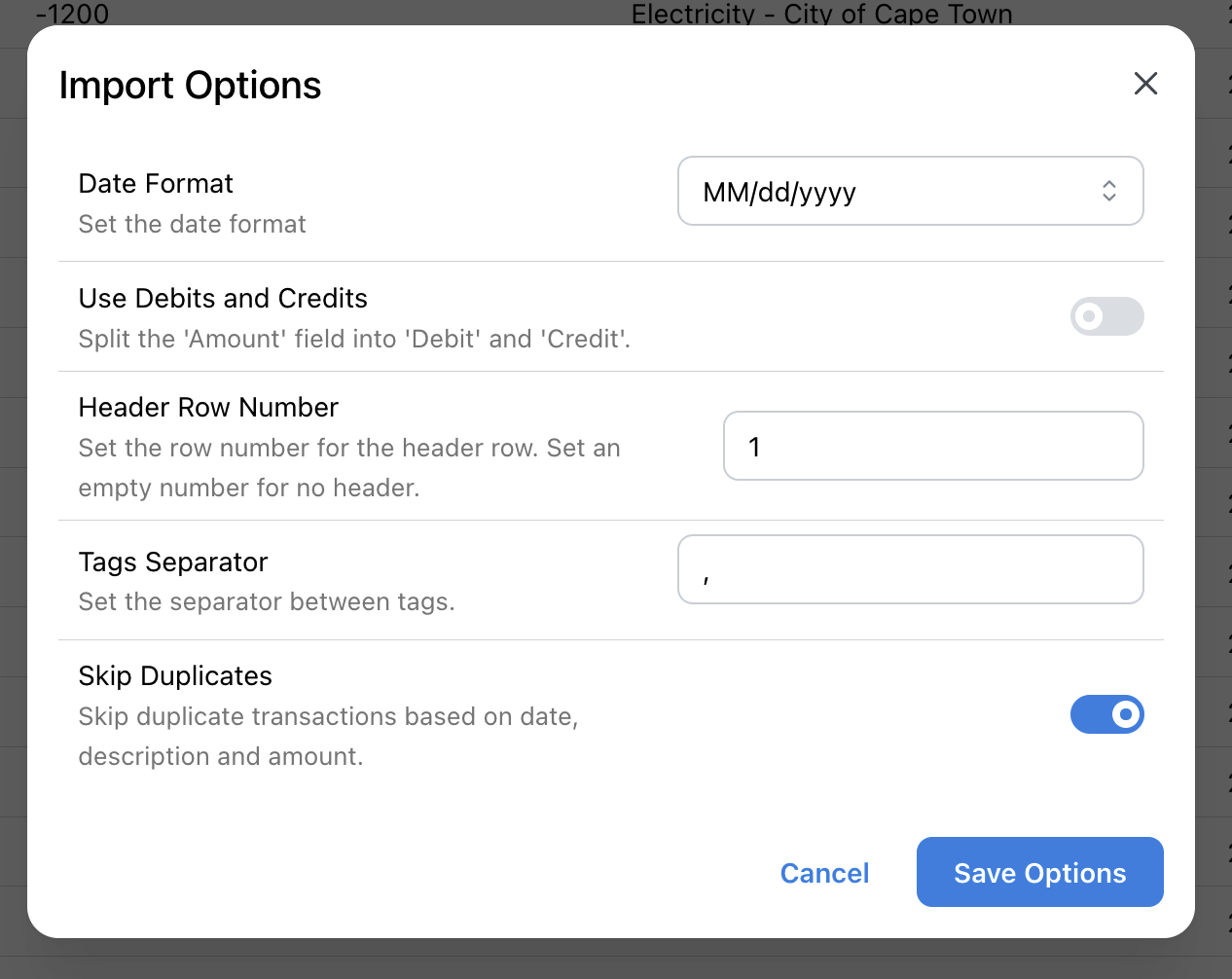
Need to customize how your CSV is processed? Click "Import Options" to configure these settings:
• Date Format – Choose how dates appear in your file (MM/dd/yyyy, dd/MM/yyyy, or yyyy-MM-dd)
• Use Debits and Credits – Turn this on if your CSV has separate debit and credit columns instead of one amount column
• Header Row Number – Specify which row has your column names (usually row 1). Leave blank if there are no headers
• Tags Separator – Set the character that separates multiple tags, like a comma or semicolon
• Skip Duplicates – Automatically prevent importing transactions that already exist in FinWise
Completing the Import
Click "Import" to start the process. Large imports may take a few minutes. Don't close the window until it's complete.
After importing, review the transactions to ensure everything looks correct. Transactions will be marked as unreviewed for your verification.
Handling Duplicates
FinWise automatically detects potential duplicate transactions based on date, amount, and description. Duplicate candidates will be flagged for your review.
You can choose to import them anyway or skip them.