Transactions
Transactions are at the heart of FinWise. Learn how to view, filter, categorize, and manage your transactions effectively.
Viewing Your Transactions
The Transactions page shows all your financial activity across all accounts. By default, transactions are sorted by date with the most recent first.
Each transaction shows the date, description, category, account, and amount. Click on any transaction to see more details.
Filtering & Searching
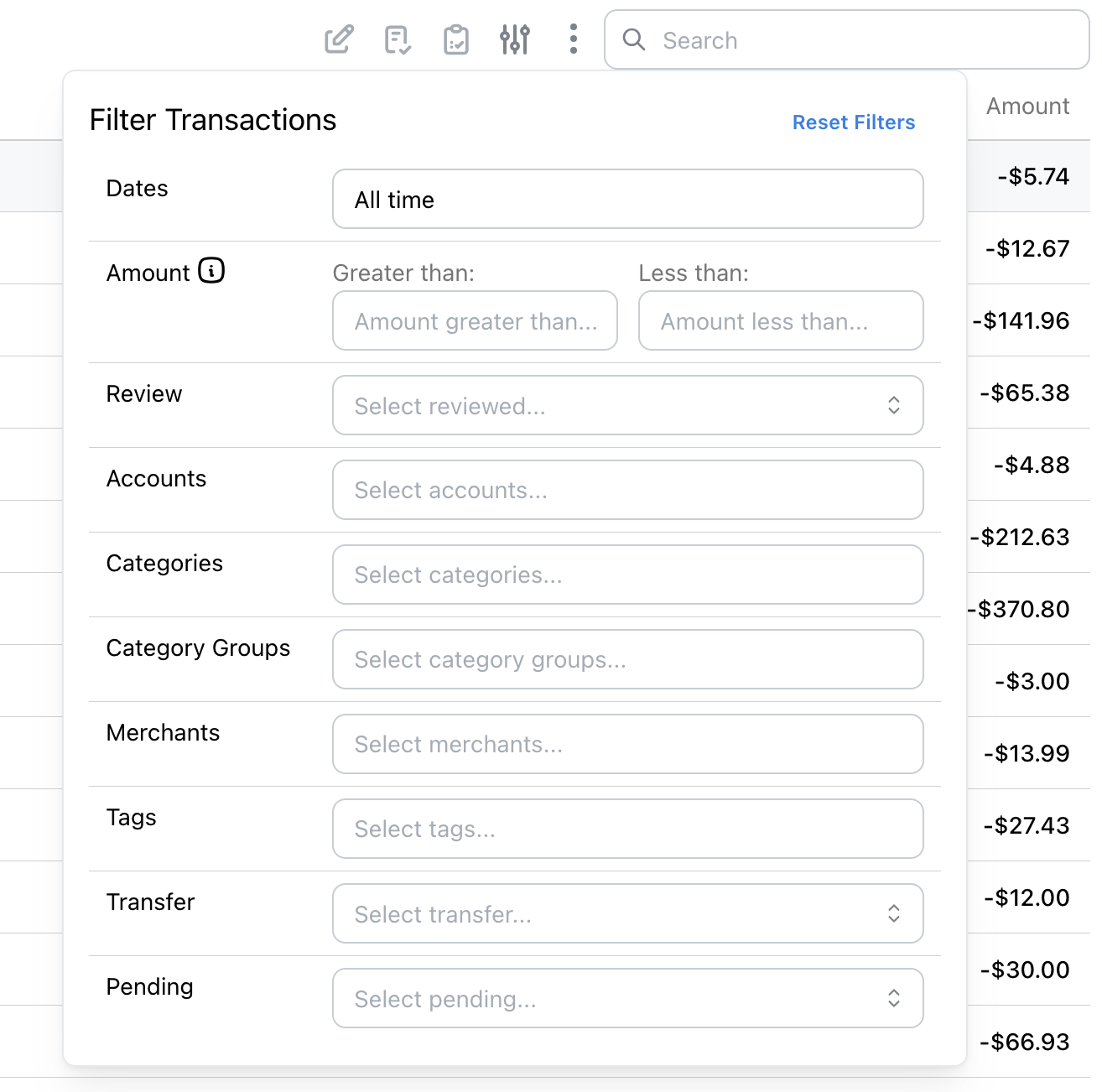
Use the filter bar to narrow down transactions by date range, accounts, categories, tags, amount, or search text. Combine multiple filters to quickly find exactly what you need.
Multi-select dropdowns (categories, tags, accounts, merchants) include "Select all" and "Unselect all" buttons at the top of the list. Use "Select all" then unselect the few you want to exclude — a quick way to build "everything except X" filters.
Categorizing Transactions
FinWise automatically categorizes transactions using AI, but you can always change the category by clicking the category badge on any transaction.
Properly categorized transactions give you accurate insights into your spending and help with budgeting.
Learn more about categories and how to customize them.
Editing Transactions
Click on any transaction to open the details panel. From here you can:
• Change the category
• Add or edit notes
• Add tags for organization
• Upload receipts or attachments
• Split the transaction across multiple categories
Bulk Operations
Need to update multiple transactions at once? Select multiple transactions using the checkboxes, then use the bulk actions menu.
Adding Manual Transactions
To add a transaction manually, click "New Transaction" at the top of the page. This is useful for cash transactions or when automatic syncing misses something.
Click "New Transaction" at the top of the page to add transactions for cash purchases or manual accounts.
More Transaction Features
FinWise offers powerful transaction management features:
• Splitting Transactions - Divide one transaction across multiple categories
• Transfers - Track money moving between accounts
• Needs Review - Flag and track unreviewed transactions
• Fix Duplicates - Scan for and clean up duplicate transactions
• Archived Transactions - Review what's been archived and restore it if needed