Tags
Tags let you add custom labels to transactions for better organization and filtering. Manage your tags by going to Settings > Tags.
Managing Tags
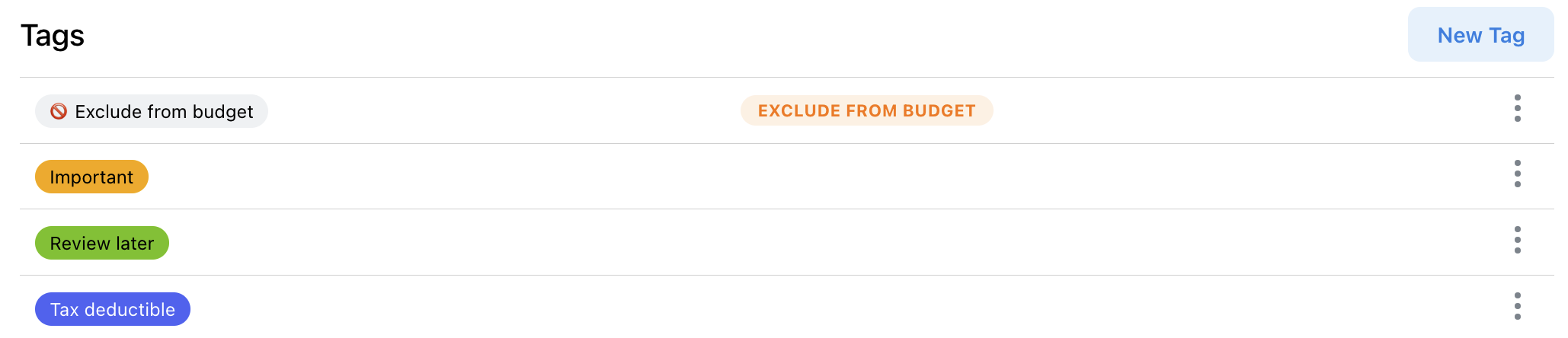
The Tags settings page shows all your tags. From here you can create, edit, and delete tags.
Creating Tags
Click "New Tag" to create a tag. Give it a name and optionally a color.
Common tag examples: "Business Trip", "Home Renovation", "Client: ABC Corp", "Tax Deductible", "Gift".
Editing & Deleting Tags
Click on any tag to edit its name or color. To delete a tag, click on it and select Delete.
Deleting a tag removes it from all transactions that used it.
Using Tags
Tags help you track projects, trips, clients, or any custom grouping across your transactions.
Applying Tags to Transactions
Click on any transaction and select "Add Tag" from the details panel. You can add multiple tags to a single transaction.
You can also bulk-tag multiple transactions at once by selecting them and using the bulk actions menu.
Filtering by Tags
Use the tag filter on the Transactions page to view all transactions with a specific tag. This is perfect for tracking project expenses or trip costs.
Tags vs Categories
Categories are for what you spent money on (Groceries, Dining, etc.), while tags are for why or in what context (Business Trip, Home Project, etc.).
A transaction can have one category but multiple tags, giving you flexible organization options.